
By default, almost every WordPress website uses the same login URL: /wp-login.php or /wp-admin. Because these URLs are publicly known, they’re the first place bots, scrapers, and brute-force attackers target.
At Panda Startups, we’ve helped many clients who noticed unusual server load or repeated failed login attempts. In most cases, automated bots were repeatedly attacking the default login page. Fortunately, protecting your login URL is quick and can significantly reduce unnecessary login traffic.
Why Should You Hide Your WordPress Login Page?
Hiding your login page won’t stop a determined attacker who already knows your website. However, it dramatically reduces automated attacks that blindly target default WordPress login URLs.
Benefits of Changing Your Login URL
- Reduces brute-force login attempts.
- Lowers unnecessary CPU and database usage.
- Keeps security logs cleaner and easier to monitor.
- Makes automated bot attacks less effective.
- Adds another security layer alongside strong passwords and 2FA.
Think of it as moving your front door to a less obvious location. It’s not a replacement for locks it simply makes finding the door much harder.
Method 1: Hide Your Login URL Using WPS Hide Login (Recommended)
This is the easiest and safest method for most WordPress users. It requires no coding and only takes a few minutes.
Step 1: Install the Plugin
- Go to Plugins → Add New.
- Search for WPS Hide Login.
- Install and activate the plugin.
Step 2: Configure Your Login URL
Navigate to: Settings → WPS Hide Login
You will find two settings
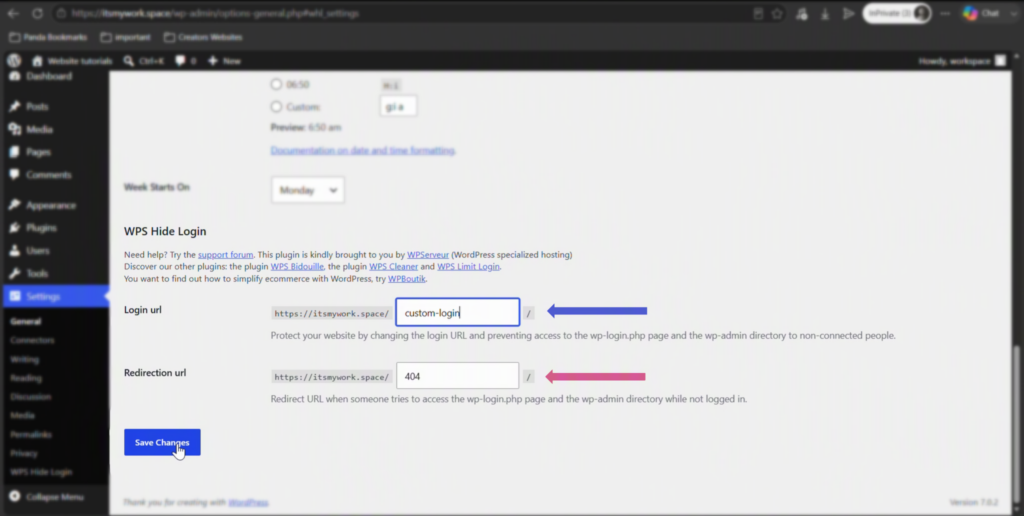
- Login URL Choose a unique URL that isn’t obvious, such as : /team-portal, /staff-access, or another memorable name.
- Redirect URL Select where visitors should be redirected if they try /wp-login.php or /wp-admin. Most website owners redirect users to the homepage.
Step 3: Save Changes
Save your settings. The plugin intercepts login requests without modifying any core WordPress files.
Step 4: Test Everything
- Open an Incognito browser window.
- Visit the old login URL.
- Visit your new custom login URL.
- Verify that the old URL redirects or returns a 404 error.
Step 5: Save Your New Login URL
Store the new login URL in a password manager or secure note. Forgetting it may require database access to recover.
Things to Know Before Using the Plugin
- May conflict with some security plugins like iThemes Security or All-In-One WP Security.
- Provides security through obscurity not complete protection.
- Always combine it with a strong password and two-factor authentication.
Method 2: Rename wp-login.php Manually (Advanced Users)
If you prefer not to install another plugin and understand how WordPress works internally, you can manually rename the login file.
Warning: Always create a complete backup of your website and database before making changes to WordPress core files.
Step 1: Backup Your Website
Backup your entire website not just wp-login.php.
Step 2: Copy the Login File
- Open wp-login.php.
- Copy all of its contents.
- Create a new file such as: staff-entry.php or team-access.php.
- Paste the copied code.
Step 3: Replace References
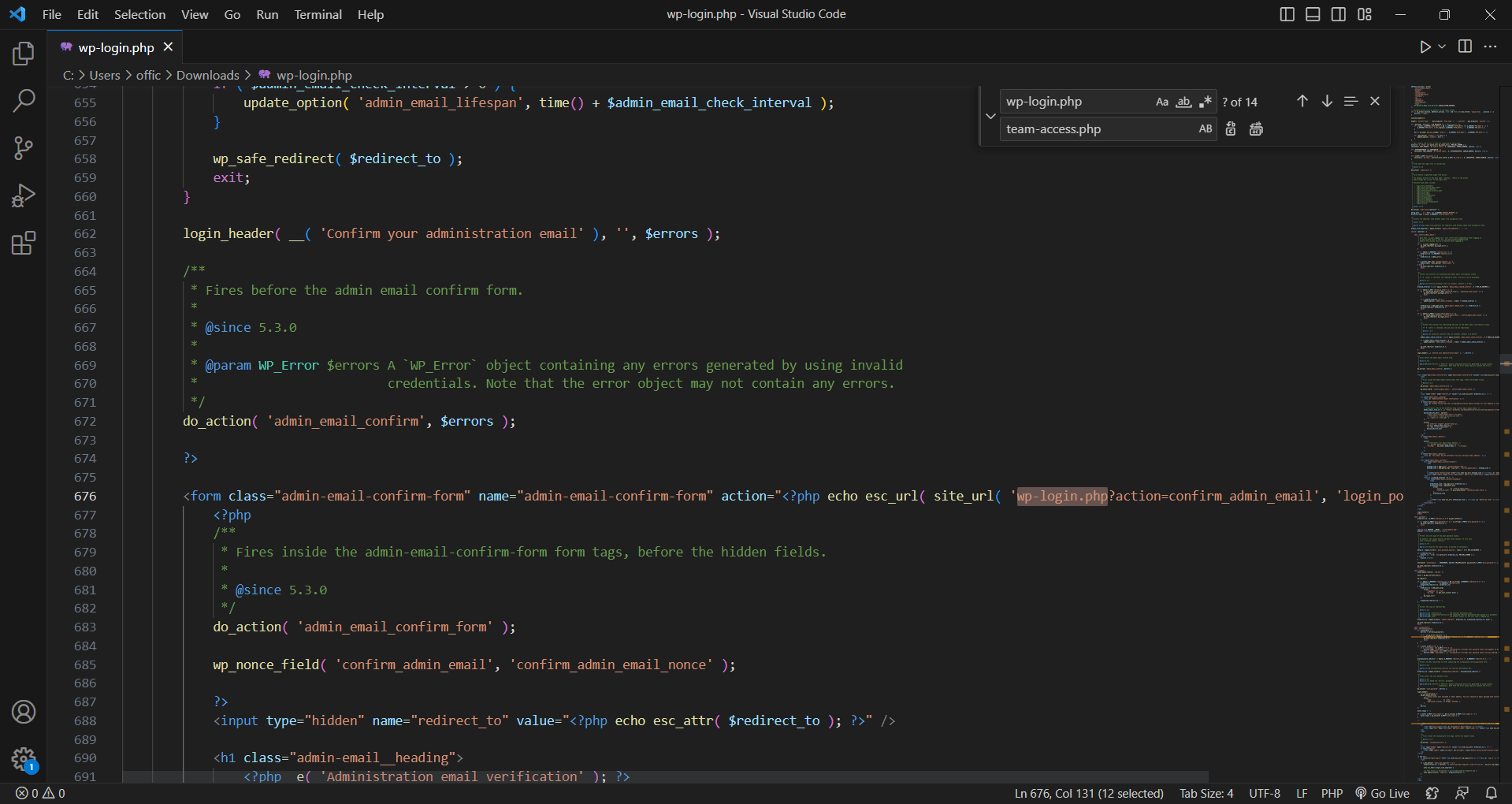
Replace every occurrence of:
wp-login.phpwith your new filename.
This ensures all redirects, forms, and internal links continue working.
Step 4: Upload and Remove the Original File
- Upload your renamed login file.
- Delete the original wp-login.php.
Step 5: Update WordPress Login URLs
Add the following code inside your child theme’s functions.php file.
add_filter('login_url', 'custom_login_url');

function custom_login_url($default) {
    return str_replace('wp-login.php', 'staff-entry.php', $default);
}

add_filter('logout_url', 'custom_logout_url');

function custom_logout_url($default) {
    return str_replace('wp-login.php', 'staff-entry.php', $default);
}
Replace staff-entry.php with your chosen filename.
Step 6: Test Everything
- Login using the new URL.
- Logout successfully.
- Verify all login/logout links work correctly.
- Ensure the old URL no longer functions.
Pros
- No additional plugin required.
- Complete control over your login file.
- One less plugin to maintain.
Cons
- WordPress updates may overwrite your changes.
- Plugins or themes with hardcoded login links may break.
- More technical knowledge required.
Troubleshooting Common Issues
Can’t Login After Installing WPS Hide Login?
Connect using FTP or your hosting file manager. Rename the plugin folder inside:
/wp-content/plugins/Example:
wps-hide-login
↓
wps-hide-login-off
This automatically disables the plugin and restores the default login URL.
New Login URL Shows a 404 Error
- Clear your WordPress cache.
- Clear your browser cache.
- Check for conflicting rewrite rules.
- Disable caching plugins temporarily for testing.
Renamed File Doesn’t Work
Restore your original wp-login.php from backup. Then carefully repeat the find-and-replace process. Missing just one reference usually causes the issue.
Some Pages Still Link to wp-login.php
A theme or plugin may have hardcoded the login URL instead of using wp_login_url().
Search your theme files for:
wp-login.phpUpdate every occurrence and clear your website cache afterward.
Team Members Can’t Login
After changing the login URL, send the updated link to everyone. Old bookmarks and saved login pages will stop working immediately.
WordPress Login Security Best Practices
Changing your login URL is only one layer of WordPress security. For maximum protection, combine it with these best practices:
- Use a strong, unique password.
- Enable Two-Factor Authentication (2FA).
- Keep WordPress core updated.
- Update plugins and themes regularly.
- Install a trusted security plugin.
- Schedule automatic backups.
- Limit login attempts.
- Use SSL (HTTPS) across your website.
Which Method Should You Choose?
🟢 WPS Hide Login Plugin
- Best For: Most WordPress users
- Difficulty: ⭐ Easy
🔵 Manually Rename wp-login.php
- Best For: Developers & Advanced Users
- Difficulty: ⭐⭐⭐⭐ Advanced
Final Thoughts
Hiding your WordPress login page won’t make your website invincible, but it significantly reduces automated attacks and unnecessary login traffic.
If you prefer a quick, maintenance-free solution, use WPS Hide Login. If you’re comfortable editing WordPress files and want full control, the manual approach is equally effective.
Most importantly, don’t rely on a hidden login URL alone. Combine it with strong passwords, two-factor authentication, regular updates, SSL, and reliable backups to build a secure WordPress website.